
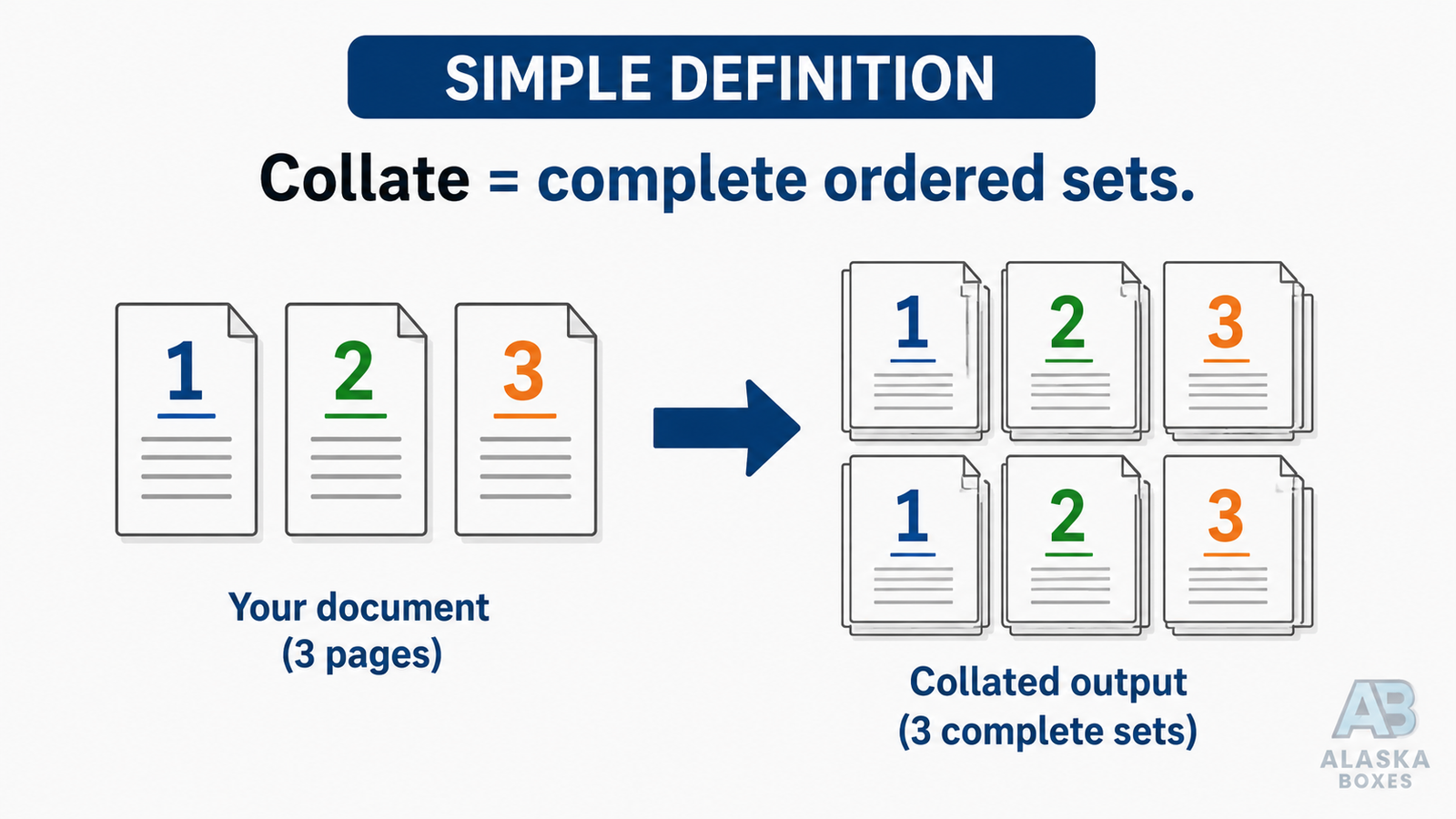
Collate means the printer prints each copy of a multi-page document as a complete, ordered set — pages 1, 2, 3, then 1, 2, 3 again — instead of printing all copies of page 1, then all copies of page 2. If you’re printing 10 copies of a 20-page report with collate turned ON, you get 10 ready-to-staple sets. With collate OFF, you get 20 separate stacks that you have to sort by hand.
That’s the short answer. But the collate setting hides a few traps: it’s not the same as double-sided printing, it sometimes gets greyed out, and there are real situations where turning it OFF is actually the smarter choice. This guide covers all of it — including exactly how to enable or disable collating in Word, Google Docs, PDFs, and every major printer brand.
Collate Meaning in Printing: A Simple Definition
The word “collate” comes from the Latin collatus, meaning “brought together.” In printing, collating is the process of gathering and arranging individual pages into their correct sequential order to form complete document sets.
When you tick the Collate checkbox in a print dialog, you’re telling the printer: “Finish one complete copy before starting the next.”
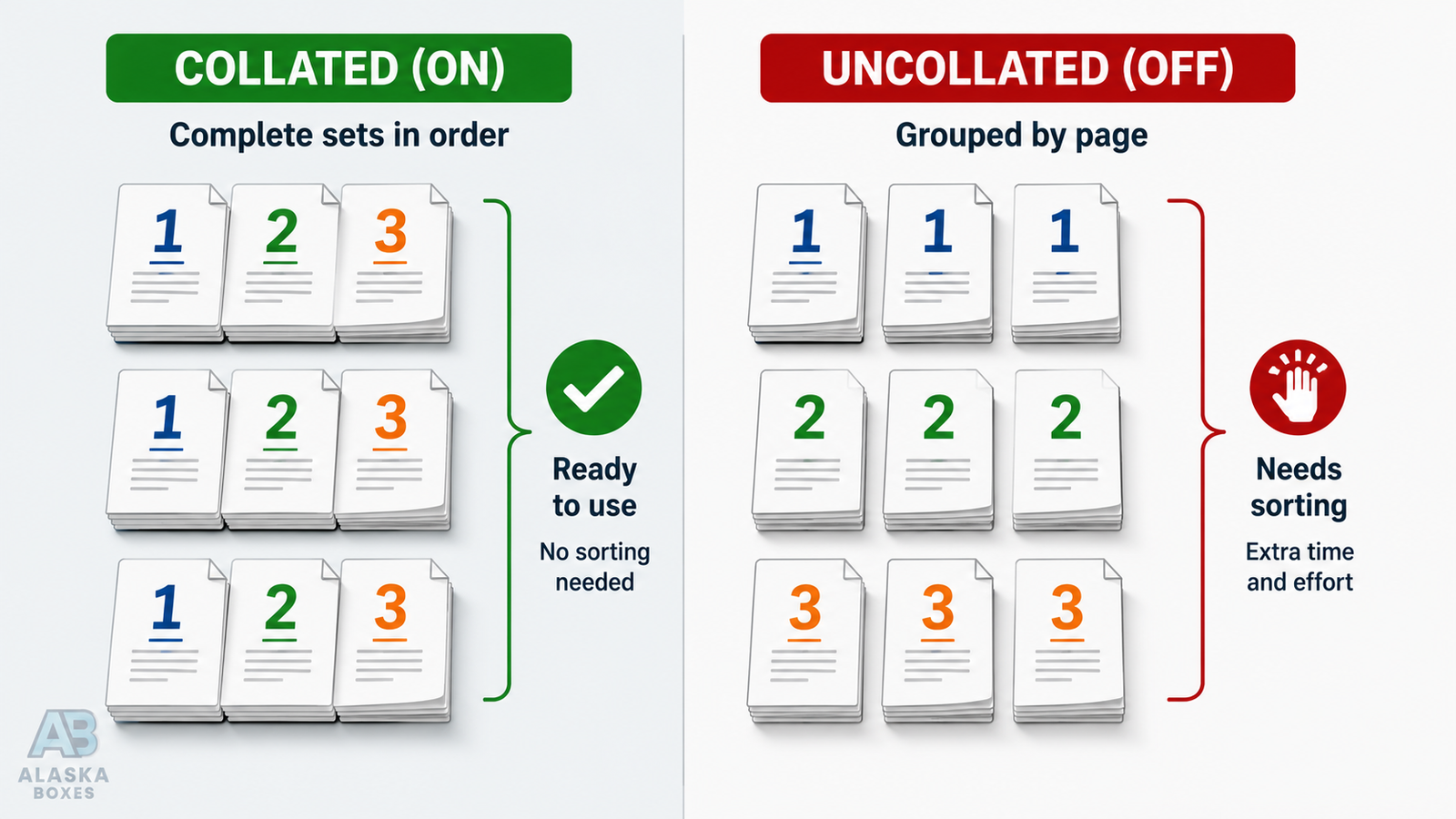
- Collated output: 1-2-3, 1-2-3, 1-2-3
- Uncollated output: 1-1-1, 2-2-2, 3-3-3
One important note: collating only matters when both conditions are true — your document has more than one page AND you’re printing more than one copy. Printing a single copy? The collate setting changes nothing.
Collated vs Uncollated Printing: Side-by-Side Comparison
| Aspect | Collated Printing | Uncollated Printing |
|---|---|---|
| Page order | 1-2-3, 1-2-3, 1-2-3 (complete sets) | 1-1-1, 2-2-2, 3-3-3 (stacks by page) |
| Best for | Reports, booklets, manuals, contracts, catalogs | Flyers, forms, carbonless pads, classroom worksheets handed out page-by-page |
| Manual sorting needed | None | Yes — you assemble the sets |
| Ready for binding/stapling | Immediately | Only after hand-collating |
| Risk of assembly errors | Very low | Higher (missed or duplicated pages) |
| Print speed on some laser printers | Can be slightly slower (memory processing) | Can be marginally faster |
| Typical default setting | ON in most modern drivers | Must be selected manually |
What Does Uncollated Mean — and When Should You Use It?
Uncollated (sometimes called grouped printing) means the printer outputs all copies of each page together before moving to the next page. It sounds inefficient, but it’s the right choice in these cases:
- Distributing pages separately. A teacher printing 30 copies of a 5-page packet where each page goes to a different activity station wants uncollated stacks.
- Forms and tear-off pads. Print shops making NCR (carbonless) forms or notepads need identical pages stacked together for padding and gluing.
- Mixing paper stocks afterward. If page 1 of every set must be printed on cardstock and the rest on standard paper, printing uncollated stacks by page makes hand-assembly with mixed stock easier.
- Bulk single-page inserts. Packaging inserts, coupons, and flyers destined for different boxes or custom mailer boxes are handled faster in uncollated stacks.
Does Collate Mean Double-Sided? (No — Here’s the Difference)
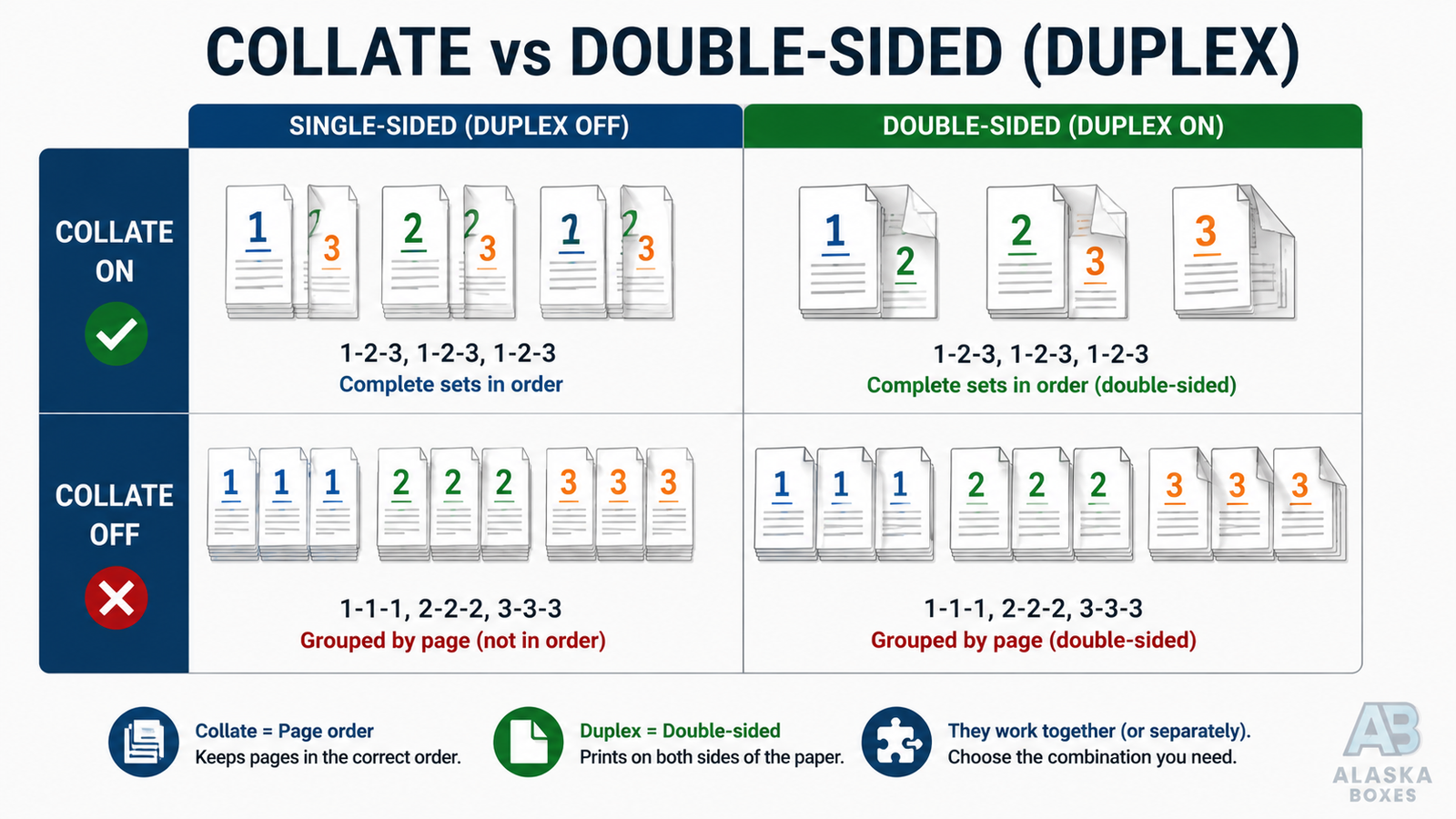
This is the single most common point of confusion, and the answer is a clear no. Collate and double-sided (duplex) are two independent settings that control different things:
| Setting | What it controls | Example |
|---|---|---|
| Collate | The order copies come out in | Sets of 1-2-3 vs stacks of 1-1-1 |
| Duplex / Double-sided | Whether printing uses one or both sides of each sheet | A 20-page document on 10 sheets instead of 20 |
You can combine them in any way:
- Collate ON + Duplex ON → complete double-sided booklets, ready to staple (the most common professional setup)
- Collate ON + Duplex OFF → complete single-sided sets
- Collate OFF + Duplex ON → double-sided stacks grouped by sheet
- Collate OFF + Duplex OFF → single-sided stacks grouped by page
Pro tip: When combining collate with duplex, make sure your page count is even — or add a blank page at the end — otherwise the last page of one copy can end up on the back of the first page of the next copy on some printers.
How to Collate When Printing (Step-by-Step for Every Platform)
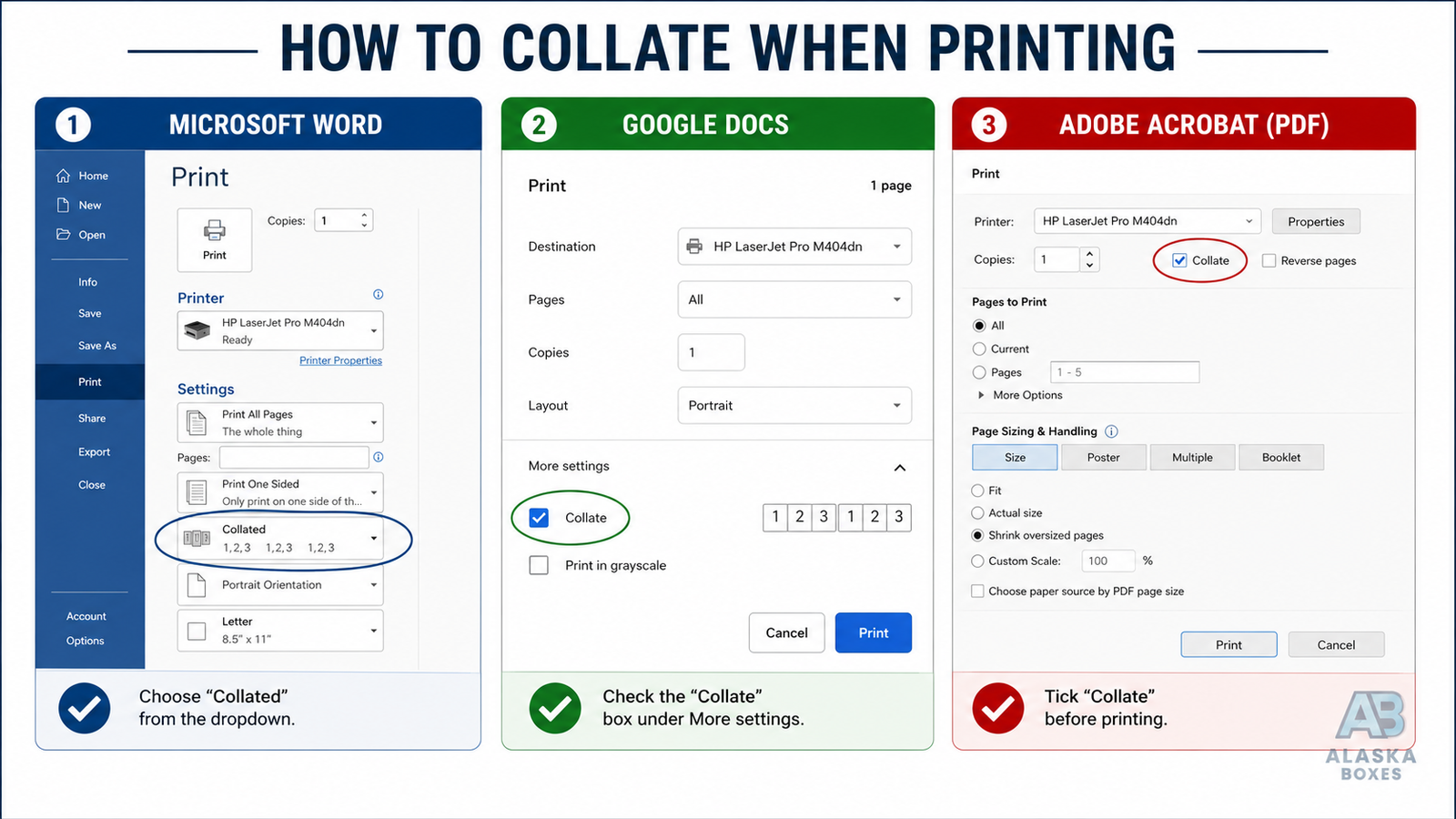
The collate option lives in the print dialog of almost every application and operating system. Here’s where to find it:
Microsoft Word (Windows & Mac)
- Press Ctrl+P (Windows) or Cmd+P (Mac).
- Set your number of copies to 2 or more.
- Under Settings, look for the dropdown that says Collated 1,2,3 1,2,3 1,2,3 — click it to switch between Collated and Uncollated.
- Print.
Google Docs / Google Sheets
- Press Ctrl+P to open the print preview.
- Click More settings.
- Enter 2+ copies — a Collate checkbox appears automatically.
- Tick or untick it, then print.
Adobe Acrobat / PDF Files
- Open the PDF and press Ctrl+P.
- Set Copies to 2 or more.
- The Collate checkbox activates right next to the copies field.
- Check it for sets, uncheck it for stacks.
Windows 10 / 11 (any app)
- In the print dialog, click More settings or Printer Properties.
- Find Collate under Copies or Finishing.
- The icon shows stacked pages 1-2-3 when ON.
macOS (any app)
- Press Cmd+P.
- In newer macOS versions, the Collate pages toggle sits directly under the Copies field (expand the dialog with “Show Details” on older versions).
HP, Canon, Epson & Brother Printers
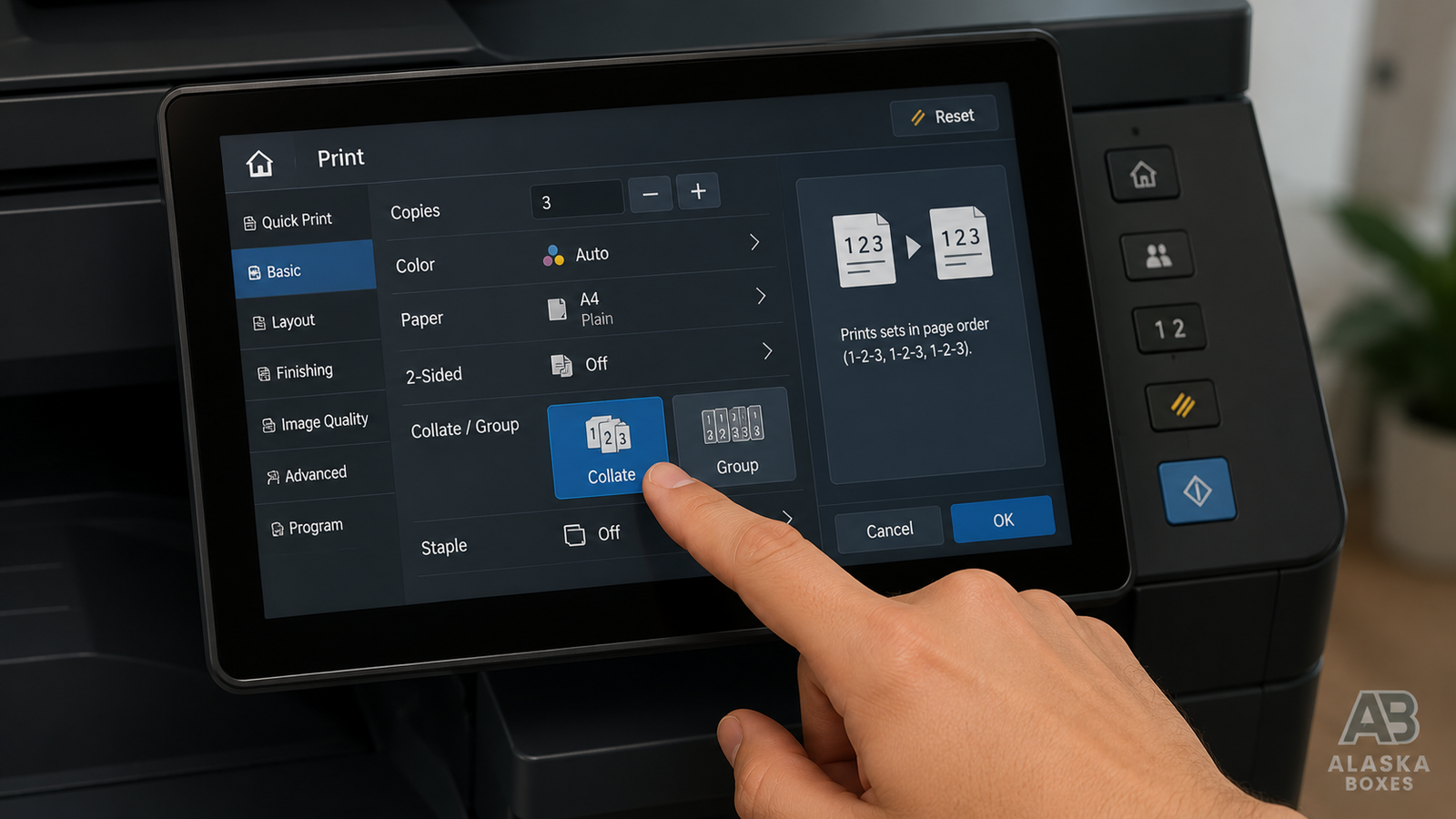
All four major brands support collating through their drivers using the steps above. On multifunction copiers, look for a Collate / Group button directly on the touchscreen panel — “Collate” gives sets, “Group” gives uncollated stacks. On office copiers (Xerox, Ricoh, Kyocera), collate is usually the factory default.
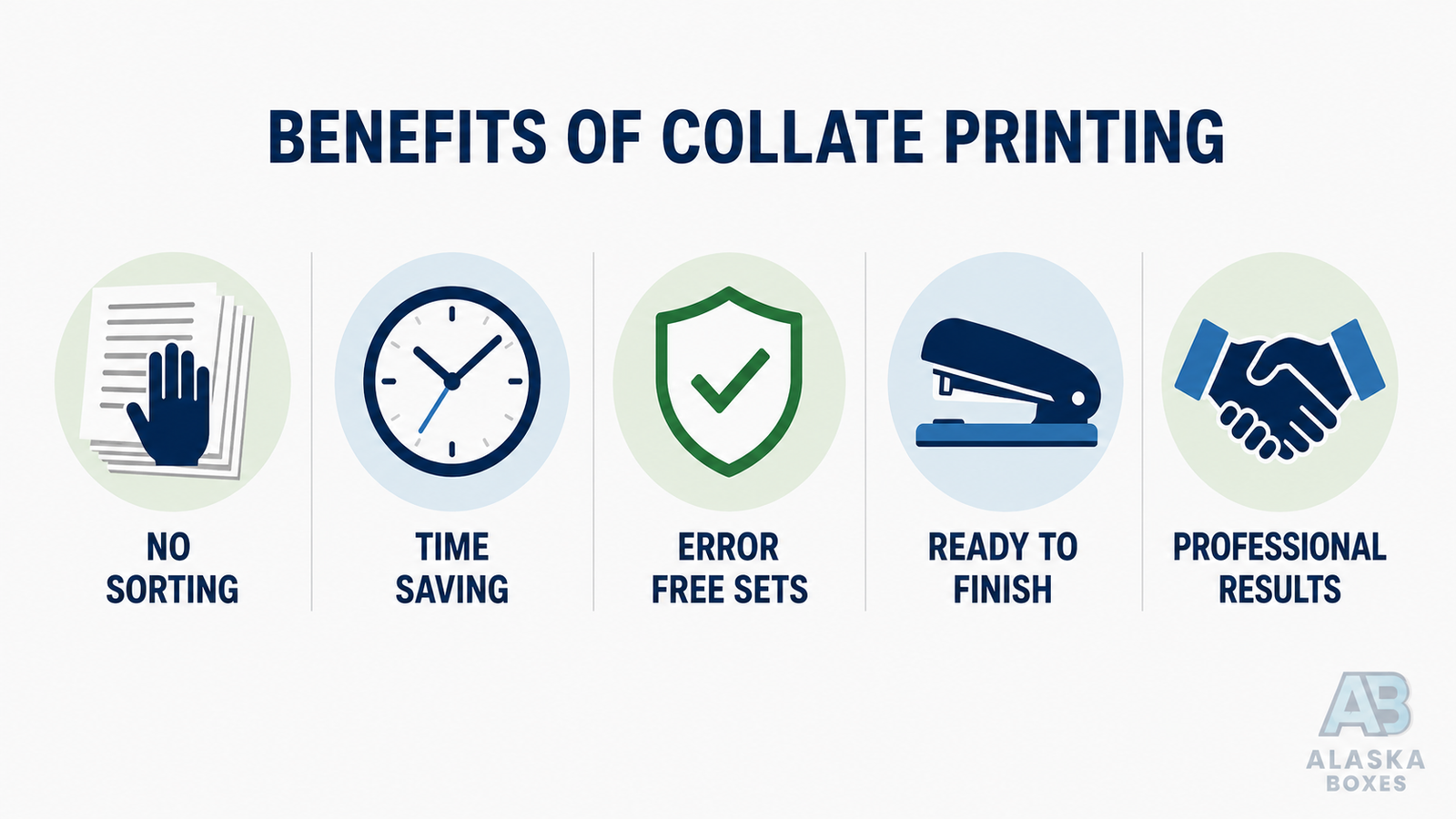
Why Use Collate Printing? 5 Real Benefits
- Zero manual sorting. A 50-copy, 30-page training manual means 1,500 sheets. Hand-sorting that takes over an hour; collating does it automatically.
- Faster finishing. Collated sets go straight to the stapler, binder, coil machine, or folder — critical when you’re producing user manuals, catalogs, or instruction sheets at volume.
- Fewer errors. Manual collation is where missing pages, doubled pages, and upside-down sheets creep in. Machine collation is consistent every time.
- Immediate usability. Grab a set off the tray and hand it out in the meeting. No prep table needed.
- Professional presentation. Documents delivered as clean, ordered sets signal attention to detail — the same reason brands invest in custom printed boxes for branding and properly finished inserts.
Where Collated Printing Is Used Most
- Business: reports, proposals, contracts, board packets, invoices with multi-page statements
- Education: exams, coursework packets, handbooks
- Publishing & print shops: booklets, magazines, zines, saddle-stitched catalogs
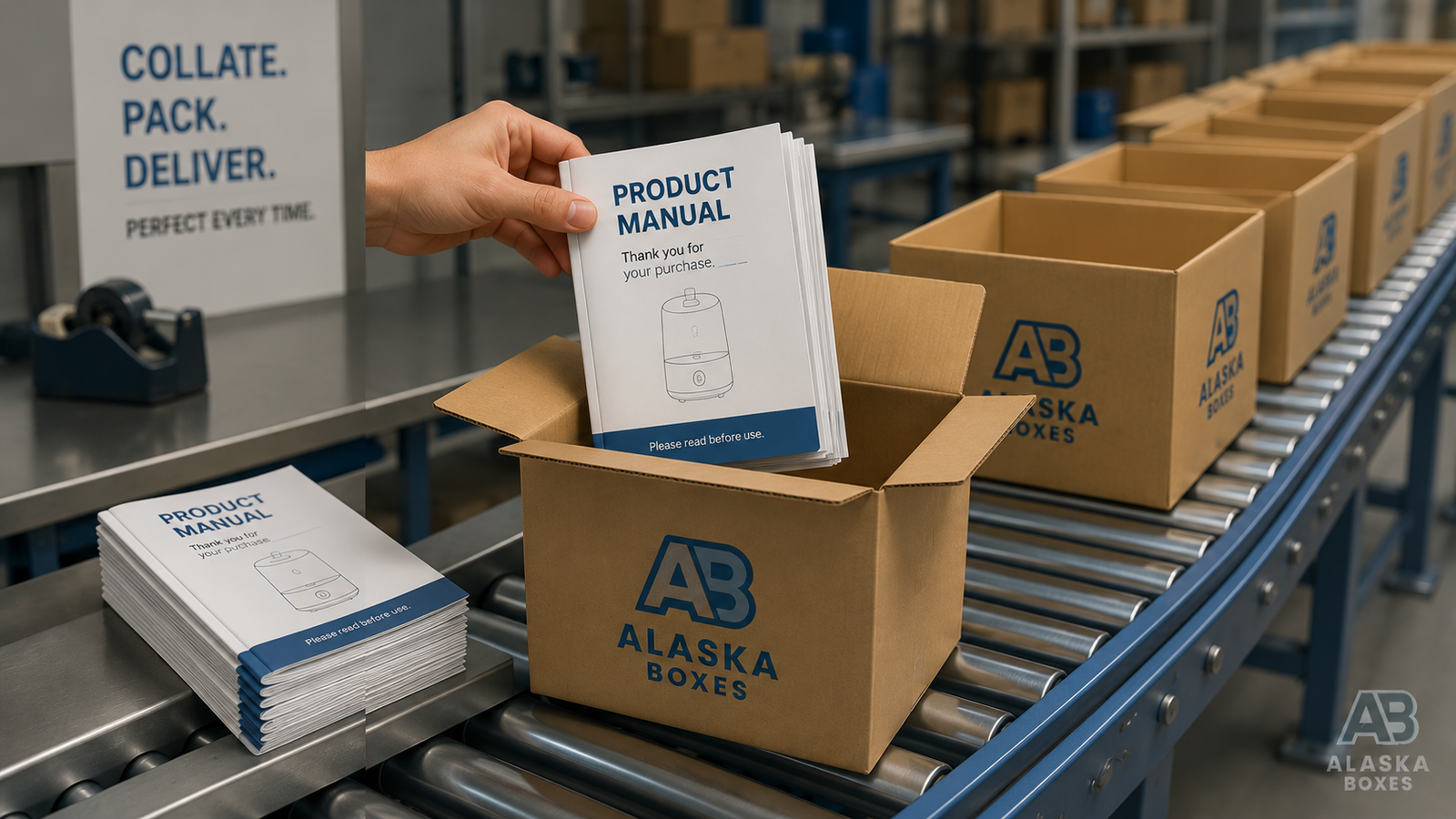
- Packaging industry: multi-page user manuals, instruction guides, and warranty booklets inserted into custom product boxes — every box must receive one complete, correctly-ordered manual, which is only possible at scale with collated printing
- Healthcare & legal: patient information leaflets packed with medicine and pharmaceutical boxes, case files, compliance documentation
Collate in the Packaging & Binding World
In commercial print and packaging, “collating” goes beyond the printer checkbox. Bindery departments use collating machines (gathering machines) that pull printed signatures or sheets from multiple feeders and merge them into ordered sets before stitching, gluing, or boxing. When a packaging supplier produces 10,000 product boxes that each need an 8-page instruction booklet, automated collation is what guarantees every single box ships with a complete, correctly-ordered manual. Even small businesses ordering packaging in runs of 50–100 units benefit from the same finishing discipline.
You may also encounter reverse collate — printing sets in last-page-first order (3-2-1, 3-2-1). This is used on printers that output pages face-up, so the finished stack still reads front-to-back when you pick it up.
Troubleshooting: Common Collate Problems and Fixes
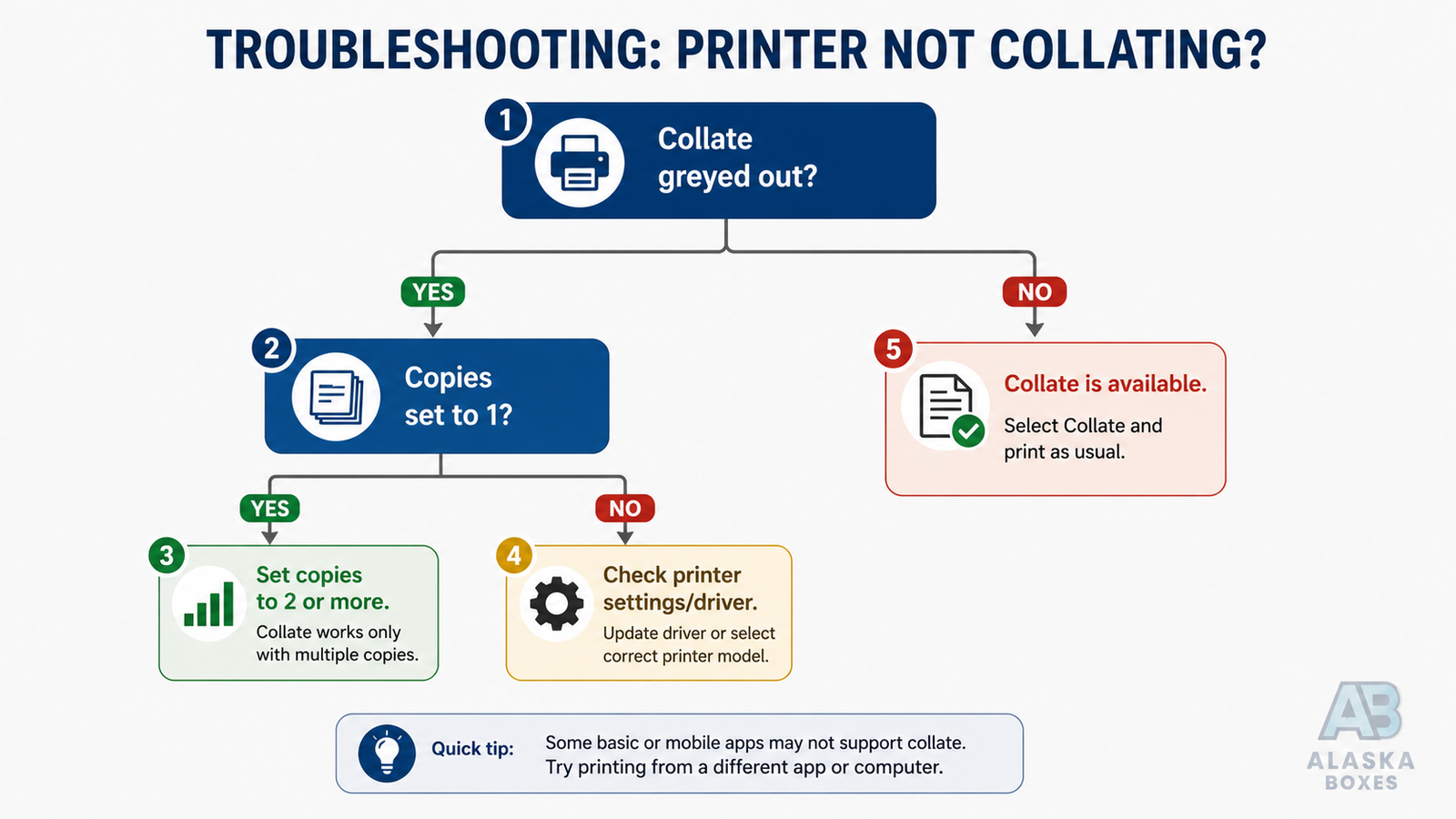
The Collate option is greyed out. Usually the copies field is still set to 1, or the app is sending the job as a single pre-merged file. Set copies to 2+, and if it’s still locked, check the printer driver’s own properties dialog instead of the app’s dialog.
The printer won’t collate even though the box is ticked. Some drivers have collation controlled in two places (the application and the driver). If they conflict, the driver usually wins. Open Printer Properties → Finishing/Copies and align both settings. Updating the printer driver fixes most stubborn cases.
The printer collates when I don’t want it to. Collate is the default on many modern drivers. Untick it in the driver’s printing defaults (Windows: Settings → Printers → Printing Preferences) so the change sticks for future jobs.
Pages come out in reverse order. That’s the page-order setting (front-to-back vs back-to-front), not collation. Look for “Reverse pages” or “Page order” in the same dialog.
Collated jobs print slowly. Collating multi-copy jobs requires the printer to re-process or store the full document per copy. Printers with more onboard memory or hard drives handle it faster; for very large jobs, sending the file once and letting the copier’s own panel handle copies is quicker than sending from the computer.
Does Collating Cost More?
At home or office level: no — collate is a free software setting. At commercial print shops: usually also free for machine collation, though hand-collation of mixed stocks, tabs, or inserts is billed as bindery labor. If your project involves special first pages, dividers, or inserts, ask your printer whether machine collation covers it before assuming.
Quick Decision Guide: Should You Collate or Not?
- Printing multiple copies of a multi-page document that will be read as a whole? → Collate ON
- Printing stacks of identical single pages (flyers, coupons)? → Setting is irrelevant
- Pages will be distributed or processed separately by page number? → Collate OFF
- Sending to binding, stapling, or box-insertion? → Collate ON, always
Need Perfectly Printed Packaging, Inserts, and Manuals?
At Alaska Boxes, printing precision isn’t just a checkbox — it’s our production standard. From custom retail and subscription boxes to food packaging boxes and the collated instruction manuals and inserts that go inside them, we handle the full print-and-packaging workflow so every unit ships complete, ordered, and brand-perfect — with free shipping across the USA & Canada and zero die charges. Get your free quote today and see the difference professional print finishing makes.
Conclusion
So, what does collate mean when printing? It simply means printing complete, ordered sets of a multi-page document instead of page-by-page stacks. Use collate for anything that will be read, bound, or inserted as a whole — reports, booklets, manuals — and switch to uncollated only when you genuinely need stacks of identical pages. Remember: collate controls order, duplex controls sides, and the two work independently. Master those two checkboxes and you’ll never hand-sort a print job again.
Frequently Asked Questions
It means each copy prints as a full ordered set (pages 1→end) before the next copy begins, so every copy comes out ready to use.
Collated = complete sets in order (1-2-3, 1-2-3). Uncollated = stacks grouped by page number (1-1-1, 2-2-2).
No. Collate controls the order of copies; double-sided (duplex) controls whether both sides of the sheet are printed. They are separate settings that can be combined.
Collate when copies will be read, stapled, bound, or packed as complete documents. Don’t collate when you need stacks of identical pages, such as flyers or per-page handouts.
On copiers, “Collate” outputs full sets while “Group” outputs stacks by page. Most office copiers default to Collate.
Almost always because the number of copies is set to 1. Increase copies to 2 or more and the option activates.
Printing sets in last-to-first page order (e.g., 3-2-1) so face-up output stacks in correct reading order.
Yes — it’s dramatically faster and virtually error-free. Manual collation is only used for special cases like mixed paper stocks or inserted tabs.